
How to Track a Live Location of a Mobile Number on Google Maps

By Razib Mojumder
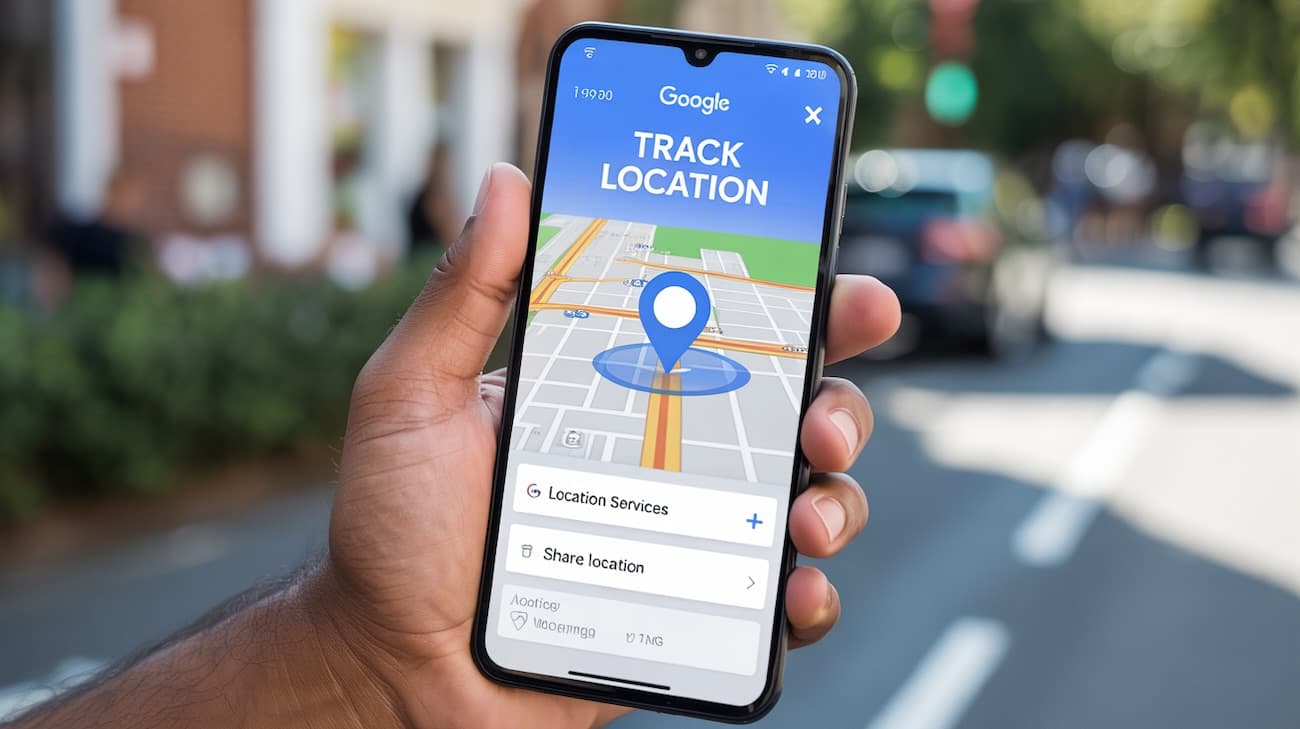
Tracking someone’s live location through their phone number sounds like something from a spy movie, but it’s actually quite straightforward when you know the right methods. Whether you need to keep tabs on your kids, coordinate with friends, or locate a lost device, Google Maps offers several legitimate ways to track mobile locations.
The catch? You can’t just type in any phone number and instantly see where someone is. That would be a massive privacy violation. But with proper permissions and the right tools, real-time location tracking becomes a practical solution for many everyday situations.
Understanding How Mobile Location Tracking Actually Works
Before we get into the how-to steps, you need to understand what’s happening under the hood. When you track a mobile number’s live location, you’re not magically tapping into some secret database. Instead, you’re using one of these methods:
GPS and Cell Tower Triangulation: Modern smartphones constantly communicate with nearby cell towers and GPS satellites. This data gets processed through location services that apps like Google Maps can access.
Wi-Fi Positioning: When phones connect to Wi-Fi networks, they can be located based on the known positions of those networks. Google maintains a massive database of Wi-Fi access points and their coordinates.
IP Address Tracking: Less accurate, but still useful. Every device connected to the internet has an IP address that can provide a general geographic location.
The key point: someone needs to actively share their location or you need to have installed tracking software with their knowledge. No legitimate service will let you secretly track anyone.
Method 1: Using Google Maps Location Sharing (The Official Way)
Google Maps has a built-in feature called Location Sharing that works brilliantly for real-time tracking. Here’s exactly how to set it up:
Setting Up Location Sharing (For the Person Being Tracked)
- Open Google Maps on your smartphone
- Tap your profile picture in the top-right corner
- Select “Location sharing”
- Tap “New share” or “Share location”
- Choose how long you want to share (1 hour, until you turn it off, or a custom duration)
- Select the contact you want to share with
You can share via their Google account, phone number (if linked to Google), or through messaging apps like WhatsApp or SMS.
Viewing Someone’s Live Location (For the Tracker)
Once someone shares their location with you:
- Open Google Maps
- Tap your profile picture
- Select “Location sharing”
- You’ll see everyone currently sharing their location with you
- Tap on their profile to see their real-time position on the map
The location updates automatically every few seconds when they’re moving, and you can tap their icon to get directions to their current spot.
Info: Location Sharing drains battery faster than normal GPS use because it constantly updates your position. On Android devices, you can expect about 15-20% additional battery drain per day with continuous sharing enabled.
Method 2: Family Tracking with Google Family Link
If you’re tracking kids under 18, Google Family Link provides more robust controls than standard location sharing.
Initial Setup Requirements
- Download Google Family Link on your device (parent)
- Download Family Link for children on the child’s device
- Sign in with your Google account on both devices
- Follow the pairing process to link the devices
Tracking Your Child’s Location
Once linked:
- Open the Family Link parent app
- Select your child’s account
- Tap “Location” to see their current position on Google Maps
- You can also set location history and see where they’ve been throughout the day
Family Link shows not just live location but also battery level, which helps you know if their phone is about to die before you lose tracking capability.
Pros:
- Works on both Android and iOS devices
- Includes app management and screen time controls
- Free to use with any Google account
- Shows location history, not just current position
- Battery level indicator helps prevent lost connections
Cons:
- Only works for parent-child relationships (official setup requires age verification)
- Requires the child’s device to have internet connection
- Children receive notifications when you check their location
- Can’t track multiple children simultaneously on the same map view
Method 3: Third-Party Phone Number Tracking Services
When Google’s built-in features don’t fit your needs, several third-party services specialize in mobile number tracking. One standout option is NumLocate, which offers location tracking capabilities alongside phone number verification.
Using NumLocate for Location Tracking
NumLocate takes a different approach than Google Maps. Instead of requiring app installation on the target phone, it uses phone number lookup databases combined with carrier information.
Here’s what you can do:
- Visit the NumLocate website
- Enter the phone number you want to locate
- The service provides location data based on carrier tower information
- You’ll see the general area, city, and state associated with that number
Keep in mind this method provides less precise location data than GPS-based tracking. You’ll get the general area (usually within 1-2 miles) rather than an exact street address. This makes it useful for verifying someone’s general location or identifying unknown callers, but not for turn-by-turn navigation.
Other Third-Party Options
Several apps offer mobile tracking features:
| Service | Accuracy | Price | Best For |
|---|---|---|---|
| Life360 | High (GPS-based) | Free basic, $8/month premium | Family tracking with driving reports |
| Find My Friends (iOS) | High (GPS-based) | Free | iPhone users only |
| Glympse | High (GPS-based) | Free | Temporary location sharing |
| mSpy | Very High | $29.99/month | Comprehensive phone monitoring |
Most of these require app installation on the target device with the owner’s permission.
Method 4: Using Find My Device for Lost Phones
If you’ve lost your own phone or need to locate a family member’s device in an emergency, Google’s Find My Device service works independently of Google Maps.
Activating Find My Device
Before you lose the phone (do this now):
- Open Settings on the Android device
- Navigate to “Security” or “Google” settings
- Tap “Find My Device”
- Toggle it on
- Make sure “Location” is also enabled
Locating a Lost Device
- Go to android.com/find from any browser
- Sign in with the Google account linked to the lost phone
- You’ll see the device’s current location on a map
- Options appear to ring the device, lock it, or erase data
The location accuracy here depends on whether the phone has GPS enabled and internet connectivity. Without internet, you’ll see the last known location before it went offline.
Technical Requirements for Accurate Tracking
Regardless of which method you choose, certain technical conditions affect tracking accuracy:
Smartphone Requirements:
- GPS capability (standard on all phones made after 2015)
- Active internet connection (cellular data or Wi-Fi)
- Location services enabled in device settings
- Google account signed in (for Google-based methods)
Network Conditions:
- Strong cellular signal improves accuracy significantly
- Indoor locations often have 30-50 meter accuracy variance
- Rural areas with fewer cell towers show less precise locations
- Urban environments typically provide accuracy within 5-10 meters
Battery Considerations:
- Continuous GPS tracking reduces battery life by 20-40%
- Background app refresh needs to be enabled
- Battery saver mode can interfere with location updates
Info: Accuracy varies dramatically based on environment. Open outdoor areas with clear sky view provide accuracy within 5 meters. Dense urban areas with tall buildings might show 20-50 meter variances due to GPS signal bouncing off structures.
Privacy and Legal Considerations You Must Know
Tracking someone’s phone without permission crosses serious legal and ethical boundaries. Here’s what you need to understand:
Legal Tracking Scenarios:
- Tracking your own minor children (under 18)
- Locating your own devices
- Tracking with explicit consent from the person
- Business-provided phones with employee agreement
- Court-ordered monitoring situations
Illegal Tracking Scenarios:
- Tracking an adult without their knowledge or consent
- Installing tracking software without device owner permission
- Using someone else’s Google credentials to track them
- Tracking an ex-partner or spouse without agreement
Violating these boundaries can result in stalking charges, restraining orders, or civil lawsuits. Most states classify unauthorized phone tracking as a felony.
Troubleshooting Common Location Tracking Problems
“No Location Available” Error
When Google Maps shows this message:
- Verify the tracked person’s phone has Location Services enabled
- Check if they have internet connectivity (cellular or Wi-Fi)
- Ensure Google Maps has permission to access location in their phone settings
- Ask them to open Google Maps once to refresh the connection
Inaccurate or Jumping Location
If the location keeps jumping around:
- The phone might be switching between Wi-Fi and cellular data
- GPS signal could be weak (check if they’re indoors)
- Battery saver mode might be limiting GPS accuracy
- Clear Google Maps cache and restart the app
Location Sharing Stopped Working
Common fixes:
- Re-share location from the tracked device
- Check if the sharing duration expired
- Verify both devices are signed into correct Google accounts
- Update Google Maps to the latest version on both devices
- Restart both phones completely
Alternative Methods When Phone Numbers Aren’t Enough
Sometimes you need to track a location but only have limited information. Here are workarounds:
If You Have Email Instead of Phone Number:
Google Contacts lets you share location with anyone who has a Gmail address. The process mirrors phone number sharing, but you select their email contact instead.
If They’re Not in Your Contacts:
Generate a location sharing link through Google Maps and send it via any messaging platform. The recipient clicks the link to see your live location without needing to add you as a contact.
For Temporary Tracking:
Glympse specializes in time-limited location sharing. You can share your location for 15 minutes up to 4 hours without requiring the recipient to install any app or create an account.
Best Practices for Responsible Location Tracking
If you’re implementing location tracking for legitimate purposes, follow these guidelines:
For Parents Tracking Kids:
- Have an open conversation about why you’re tracking
- Set clear boundaries about when you’ll check locations
- Respect their privacy during appropriate times
- Use tracking as a safety tool, not a punishment mechanism
For Coordinating with Friends:
- Share locations only when necessary (meeting up, traveling together)
- Set automatic expiration times
- Disable sharing immediately when the event ends
- Don’t abuse the privilege by checking locations constantly
For Elderly or Vulnerable Adults:
- Get explicit consent before implementing tracking
- Choose solutions with easy-to-use emergency features
- Test the system regularly to ensure it works when needed
- Set up multiple backup contacts who can access location
How Accurate Is Mobile Number Location Tracking in 2026?
Current technology provides varying accuracy levels:
GPS-Based Tracking (Google Maps, Life360):
- Outdoor accuracy: 3-10 meters (10-33 feet)
- Indoor accuracy: 20-50 meters (65-164 feet)
- Update frequency: Every 1-5 seconds while moving
Cell Tower Triangulation (NumLocate, carrier services):
- Urban accuracy: 50-200 meters (164-656 feet)
- Rural accuracy: 500-5000 meters (0.3-3 miles)
- Update frequency: Every 15-60 seconds
IP-Based Location:
- Accuracy: City-level only
- Can’t provide street addresses
- Useful only for general geographic verification
The combination of GPS, Wi-Fi positioning, and cell tower data provides the most accurate results. That’s why apps requiring installation (like Google Maps sharing) outperform phone number lookup services in precision.
Security Measures to Protect Your Own Location
While you’re learning to track others (legitimately), protect your own location privacy:
Disable Background Location Access:
Go through your Android or iOS apps and revoke location permissions for apps that don’t need them. Social media apps especially love to collect this data.
Review Location History:
Google stores your location history by default. Visit myactivity.google.com/activitycontrols to see what’s being tracked and delete it if desired.
Turn Off Location Sharing:
Regularly audit who has access to your location through Google Maps. Remove expired or unnecessary shares.
Use Airplane Mode Strategically:
When you truly need to go off-grid, airplane mode prevents all location tracking (but also disables all connectivity).
Can I track someone’s location without them knowing using just their phone number?
No legitimate service allows this. Google Maps requires explicit location sharing permission, and third-party apps need installation on the target device. Any service claiming to track phones secretly without consent is either a scam or illegal. Phone number lookup services like NumLocate can provide general area information based on carrier data, but this isn’t real-time GPS tracking and shows accuracy of 1-2 miles at best.
How long can someone share their location on Google Maps?
Google Maps offers three sharing duration options: 1 hour, until you manually turn it off, or a custom time period (anywhere from 15 minutes to 3 days). After the time expires, sharing automatically stops, and the other person can no longer see your location. You can also manually stop sharing at any time by going to Location Sharing settings and tapping “Stop sharing.”
Does location tracking work if the phone is turned off or in airplane mode?
No. Location tracking requires the phone to be powered on with an active internet connection (cellular data or Wi-Fi). When a phone is off or in airplane mode, Google Maps shows the last known location before connectivity was lost, along with a timestamp. The location won’t update again until the phone reconnects to the internet and has location services enabled.
Why is the location showing wrong on Google Maps when I’m tracking someone?
Several factors cause inaccurate locations: weak GPS signal (especially indoors), battery saver mode limiting GPS accuracy, the phone switching between Wi-Fi and cellular data, or outdated Google Maps app. The tracked person should ensure location services are set to “High Accuracy” mode in their phone settings, have a clear view of the sky if possible, and keep Google Maps updated to the latest version.
Can I track a phone number’s location history, not just current position?
Yes, but only with proper access to the device or account. Google Maps Timeline (now called Timeline in Location History) stores location history, but you need to be signed into that person’s Google account to view it. For children, Google Family Link shows location history for the past day. Third-party apps like Life360 offer location history features for a few days to weeks depending on your subscription level.
Making the Right Choice for Your Situation
Picking the best tracking method depends on your specific needs:
For quick meetups with friends: Standard Google Maps location sharing works perfectly. Share for an hour, meet up, done.
For ongoing family safety: Google Family Link (for kids) or a dedicated app like Life360 provides the continuous monitoring and history features you need.
For verifying phone numbers or getting general location info: Services like NumLocate help when you need basic geographic data without full GPS tracking.
For lost device recovery: Google’s Find My Device offers the most comprehensive lost phone features including remote lock and erase capabilities.
Remember that live mobile location tracking works best as a safety and coordination tool, not a surveillance system. The technology exists to make our lives more convenient and secure, but it requires trust and transparency between all parties involved. Whatever method you choose, prioritize open communication about why tracking is necessary and respect everyone’s privacy boundaries.
Editorial Standards & Fact Checking
At NumLocate, our telecommunications and privacy guides are independently researched, cross-referenced with official FCC guidelines and carrier numbering plans, and reviewed to ensure consumer safety and accuracy.

Written by Razib Mojumder
Telecommunications & Digital Privacy Specialist
Razib is the lead researcher at NumLocate, specializing in caller ID authentication protocols, STIR/SHAKEN anti-spoofing frameworks, and practical digital privacy tools for everyday consumers.
Related Articles
 How To
How to Fix Your Phone Number Being Marked as Spam
TL;DR If your phone number is marked as spam, you can fix it by requesting removal from major spam databases like the First Orion Scam Call Registry and registering with the National Do Not Call Registry, contacting your carrier to clear your number’s reputation, reducing your call volume and improving call patterns to avoid spam […]
 How To
How to Remove Your Phone Number From Google Search
TL;DR To remove your phone number from Google search results, start by deleting the source content where your number appears, then submit removal requests through Google’s Removals Tool for specific URLs. You can also contact website owners directly to remove your information, request de-indexing for sensitive personal data, and adjust privacy settings on social media […]
 How To
How to Report Scam Calls and Robocalls
TL;DR Report scam calls to the Federal Trade Commission through their online complaint form or by phone at 1-877-382-4357, and forward robocalls to 7726 (SPAM) to help your carrier identify and block fraudulent numbers. You should also report violations to the Federal Communications Commission, your state attorney general, and consider registering your number on the […]